Pullback & Resolve
When files are changed outside Oh My Agents (for example, a teammate updates a shared repo, a sync tool modifies files, or you edit in your IDE), OMA detects the mismatch and flags it as a conflict in Changes.
-
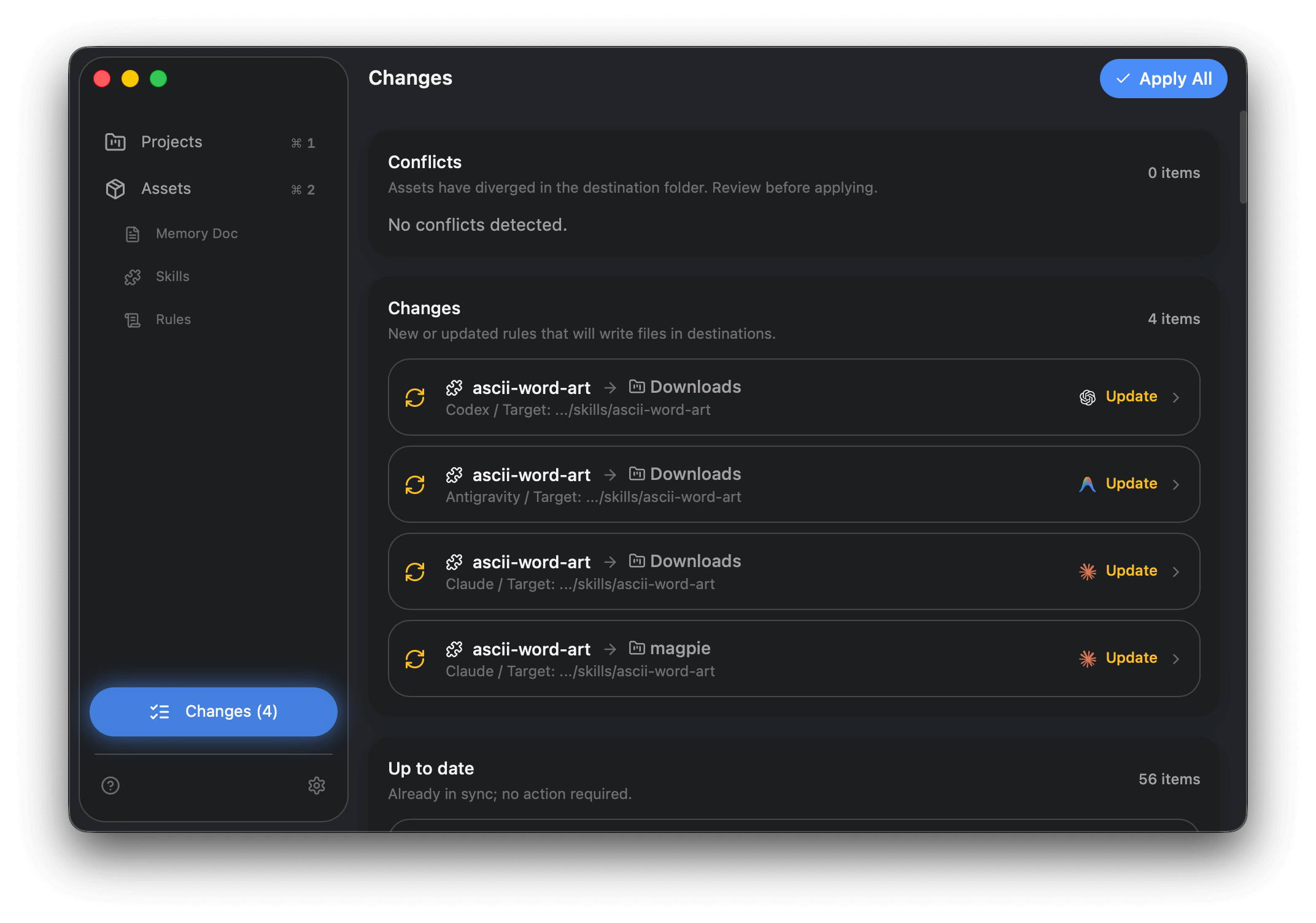
Open Changes
- Go to Changes in the sidebar.
- Conflicts show up under Conflicts.
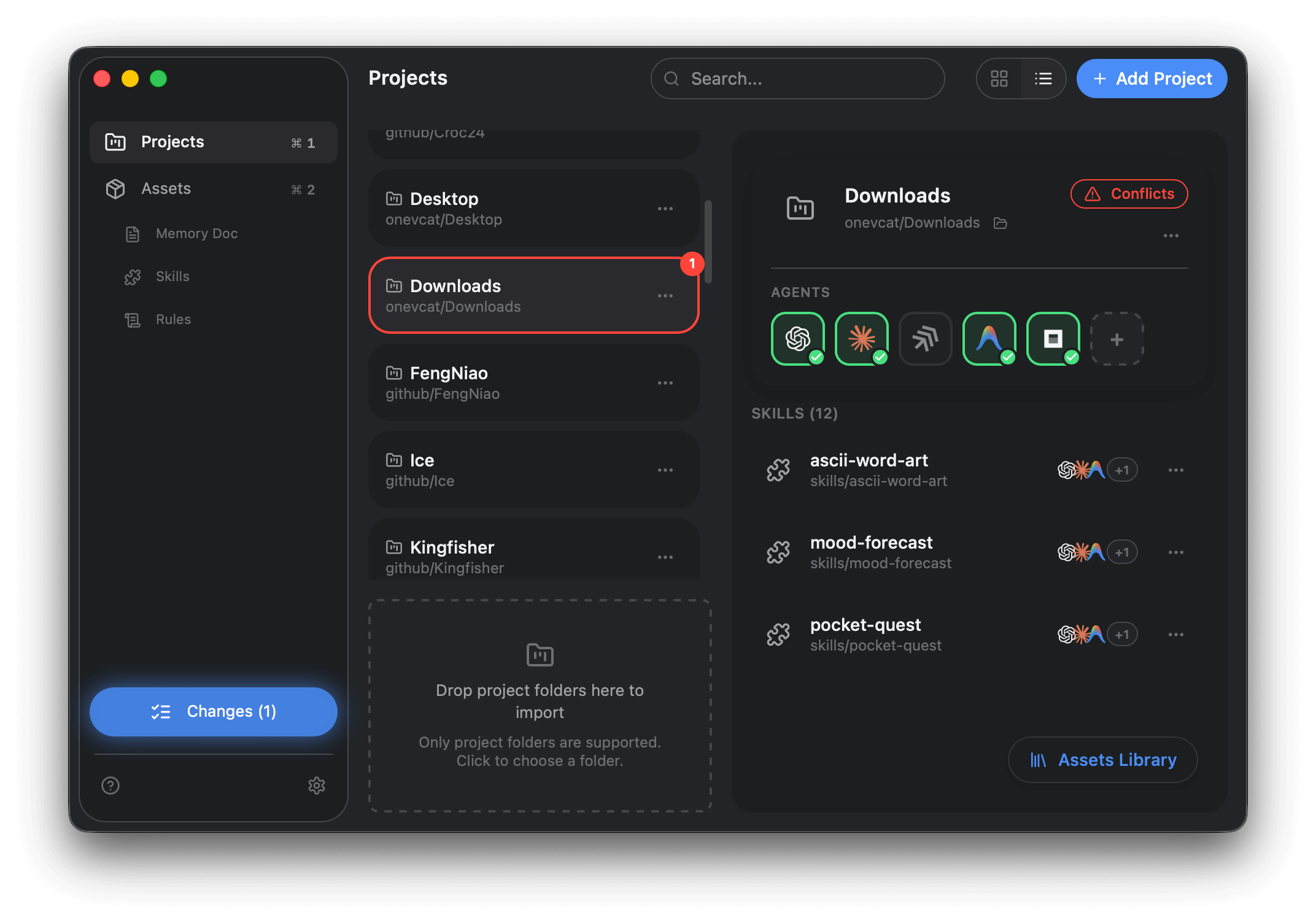
- Projects with conflicts are outlined in red in Projects.
-
Inspect the conflict
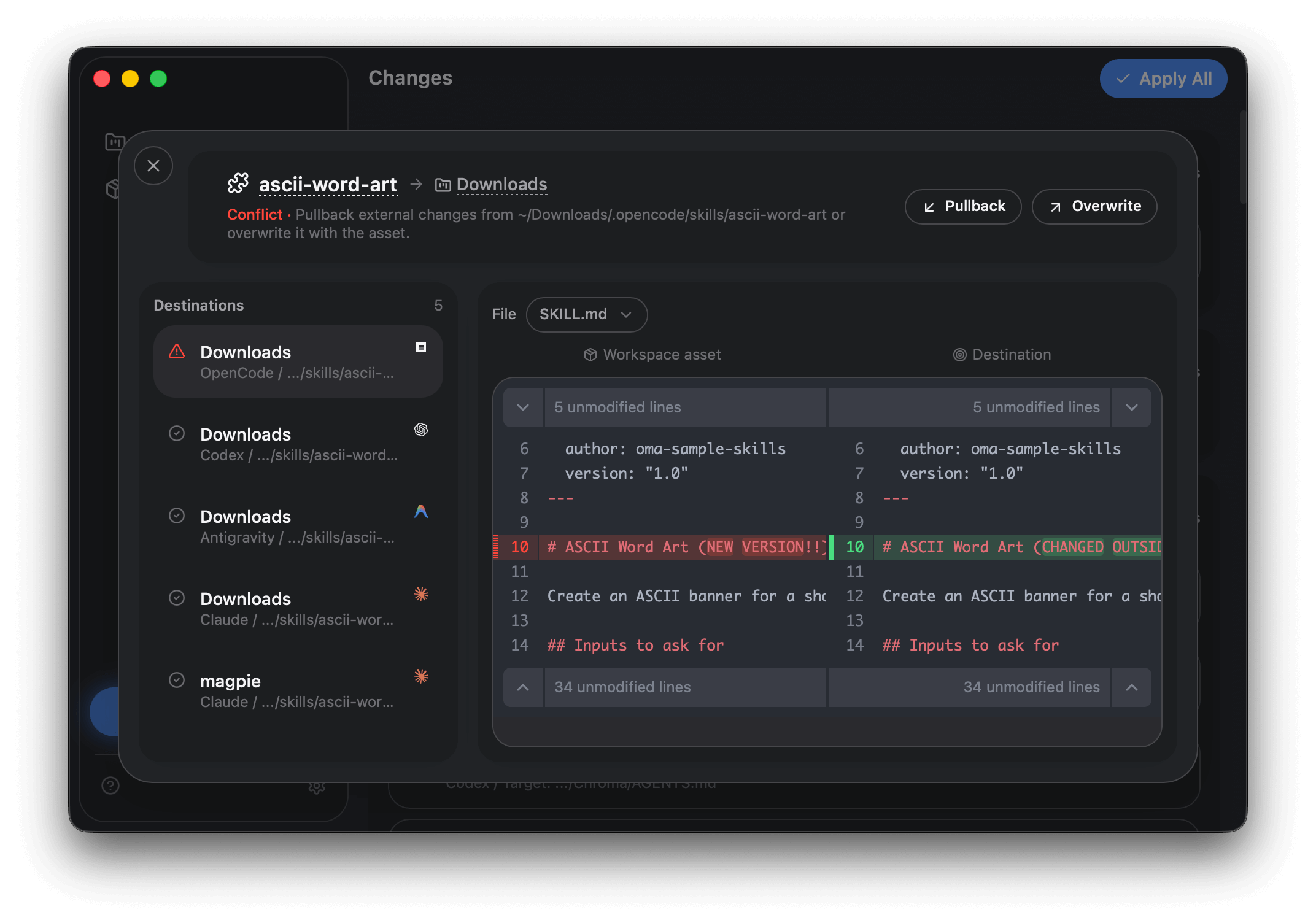
- Click the item to open the detail view.
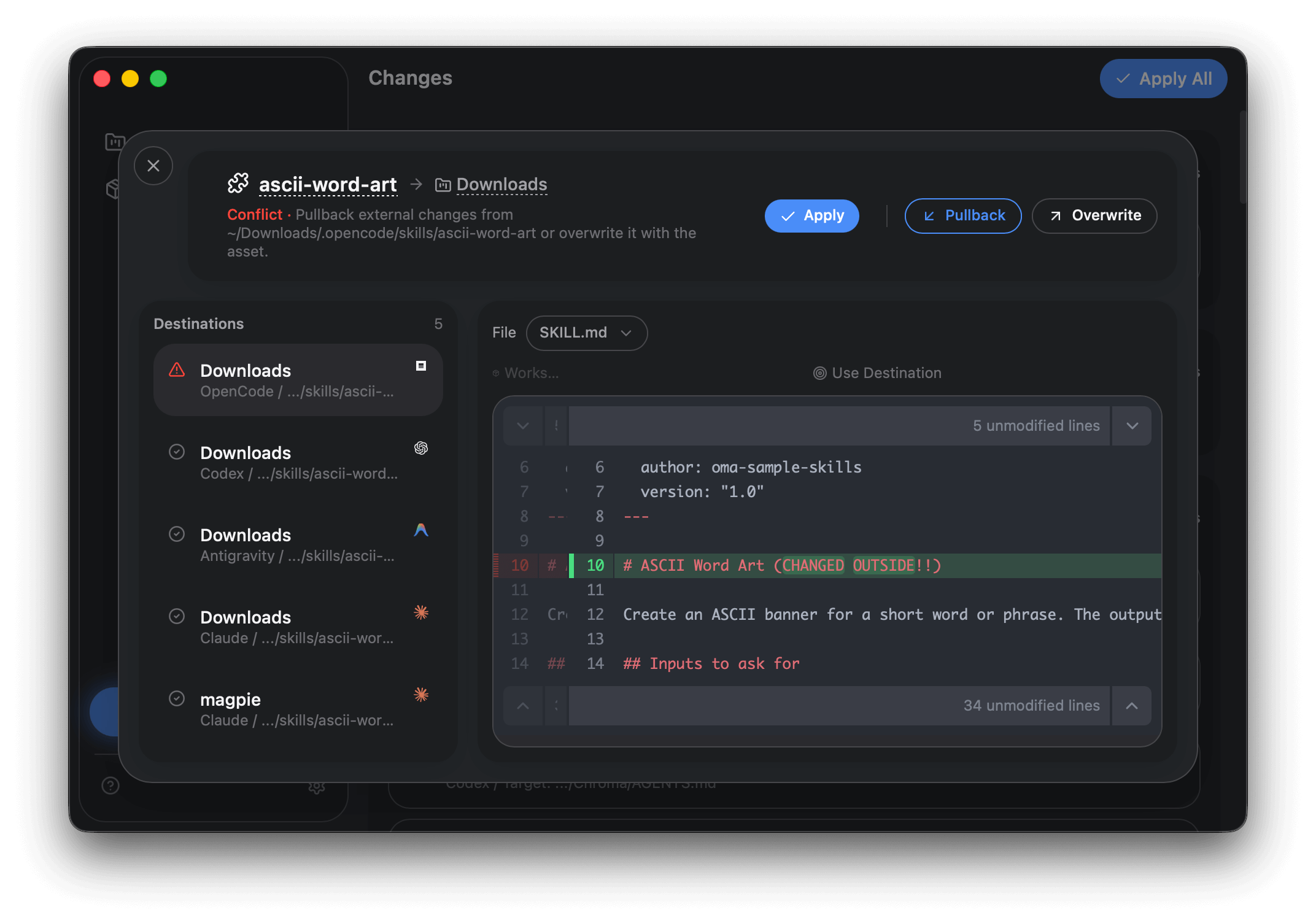
- Compare OMA Library and Project File content.
-
Choose how to resolve
- Pullback: keep the project file version and update the OMA Library asset.
- Overwrite: keep the OMA Library asset and rewrite the project file.
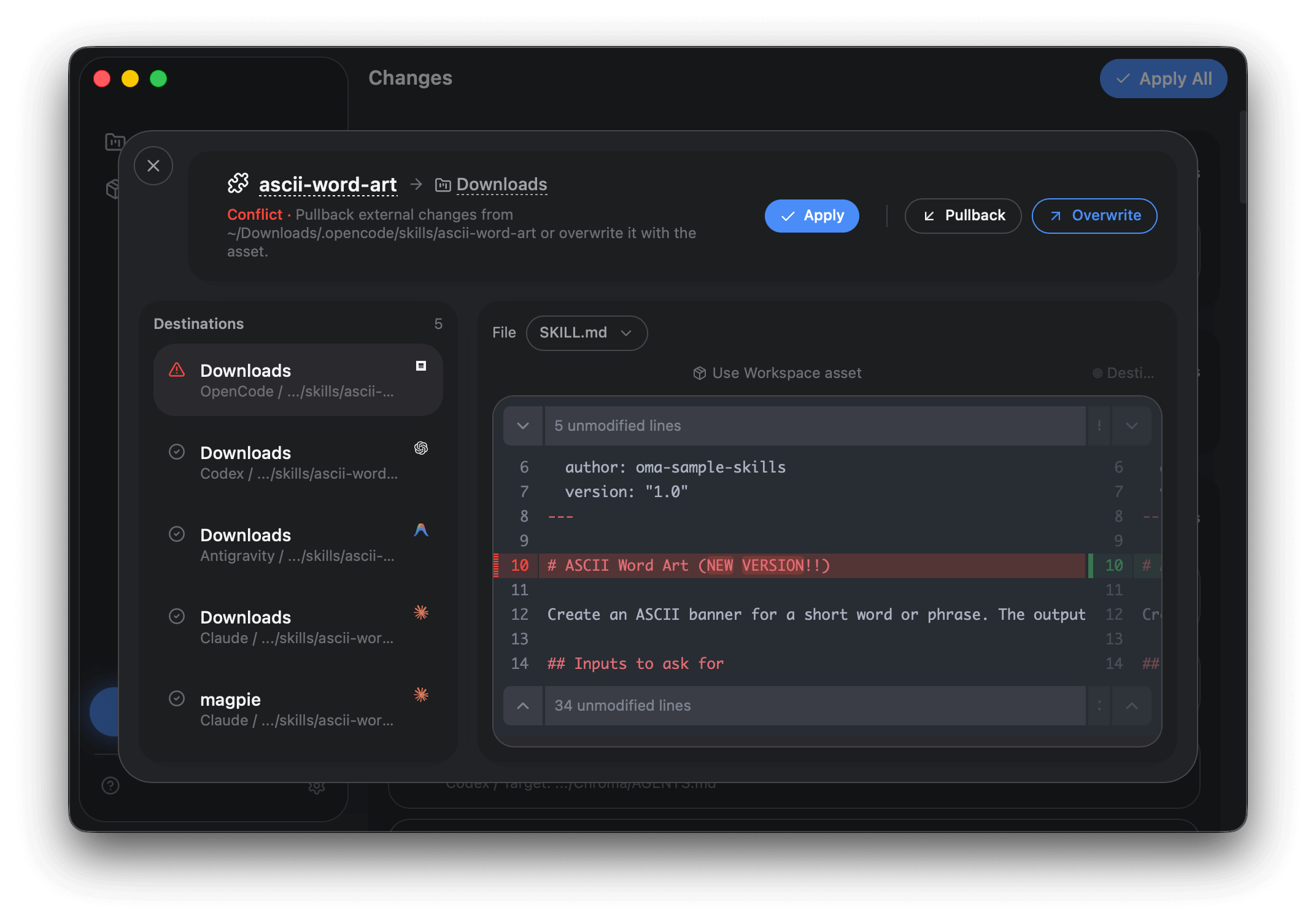
- Pullback and Overwrite preview the result with an animated diff.
- Select one option first, then click Apply.
- Pullback: keep the project file version and update the OMA Library asset.
-
Apply
- Confirm the selected resolution in the dialog for this item.
- Apply All publishes non-conflict changes and still skips unresolved conflicts.
When to use each option
Section titled “When to use each option”- Pullback: You intentionally edited the file in the project and want the OMA Library to match it.
- Overwrite: You want the OMA Library version to remain the source of truth.
After pullback
Section titled “After pullback”Once you click Apply for a pullback, OMA treats the asset as a new version and surfaces updates for every linked project and agent. Click Apply All to publish the pulled-back changes across all existing rules.