
Import External Skills
This is the fastest way to see Oh My Agents in action: import a skill from a GitHub repo, link it to a project, then sync.
What you need
Section titled “What you need”- A URL to a skill (a skills folder or a single skill folder).
- A project already added in Oh My Agents.
-
Open Assets and click Import
- In the Assets view, click Import in the toolbar.
-
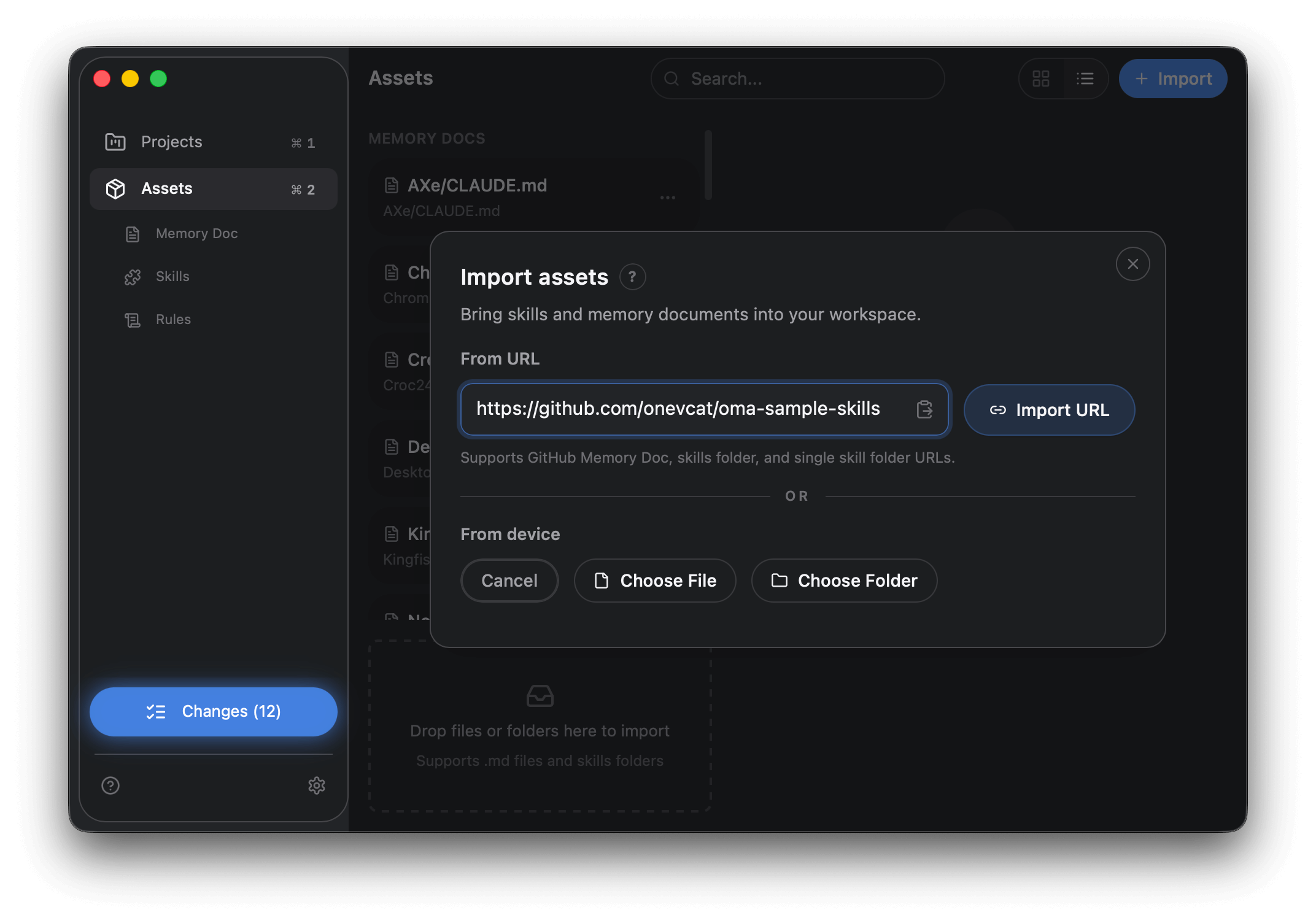
Import from URL
- Paste a URL into From URL.
- Click Import URL.
- If you do not have a URL yet, use
https://github.com/onevcat/oma-sample-skills.
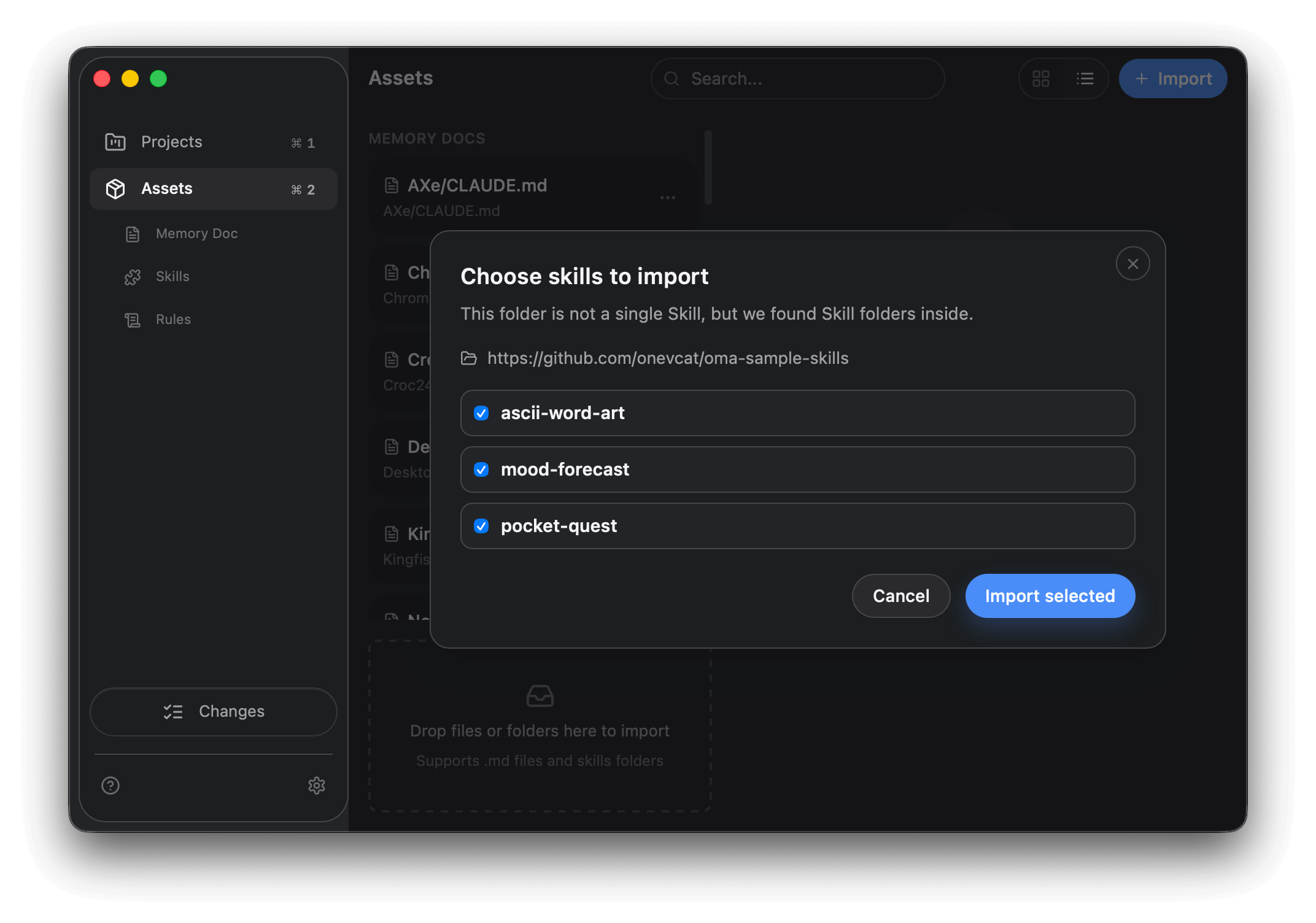
- Optional: if the URL contains multiple skills, choose which ones to import.
-
Choose a project
- After import, select the project you want to attach this skill to.
-
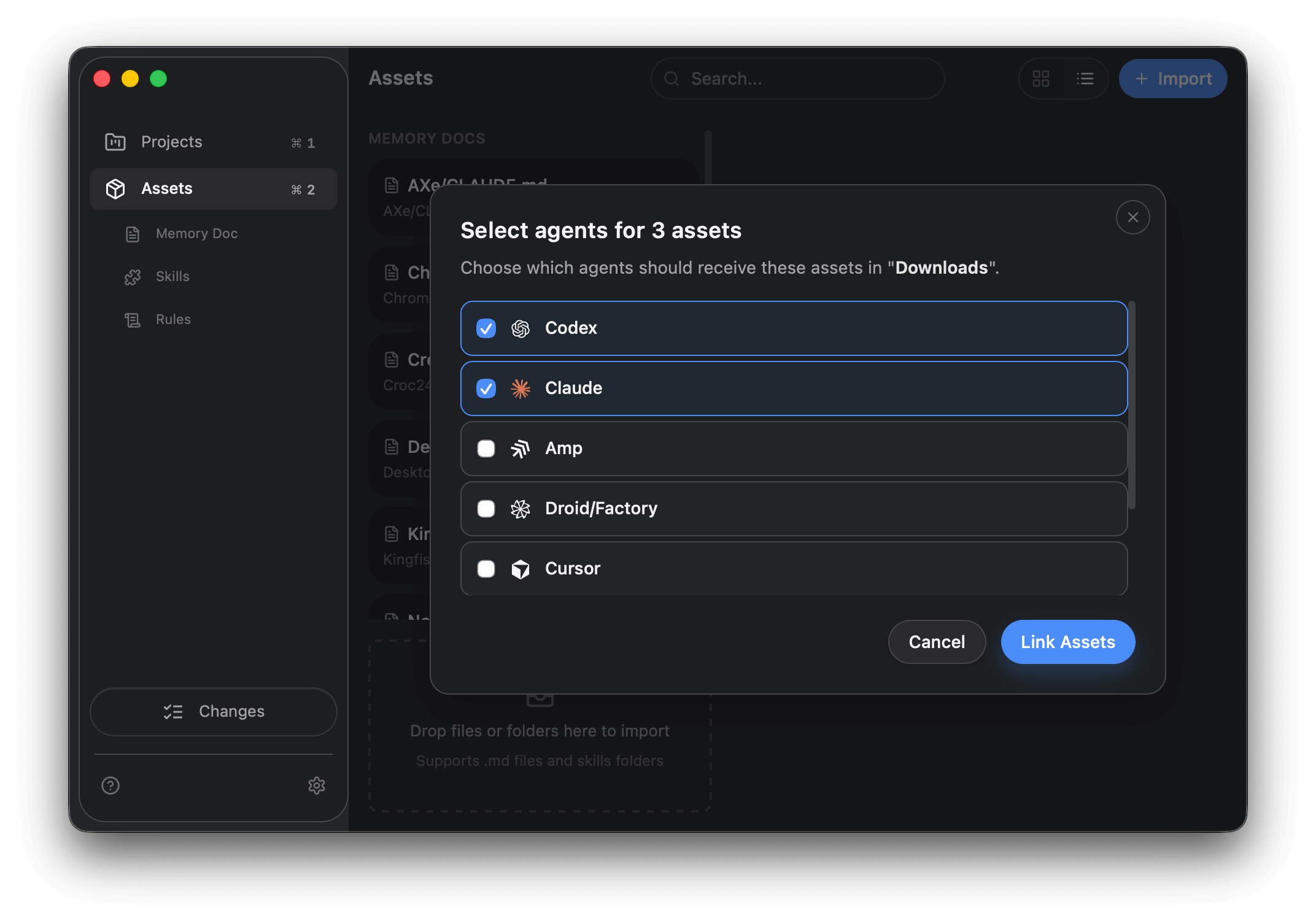
Pick agents
- Choose which agents should receive the skill.
- Confirm with Link Assets (or Apply Changes if replacing existing skills).
-
Sync the changes
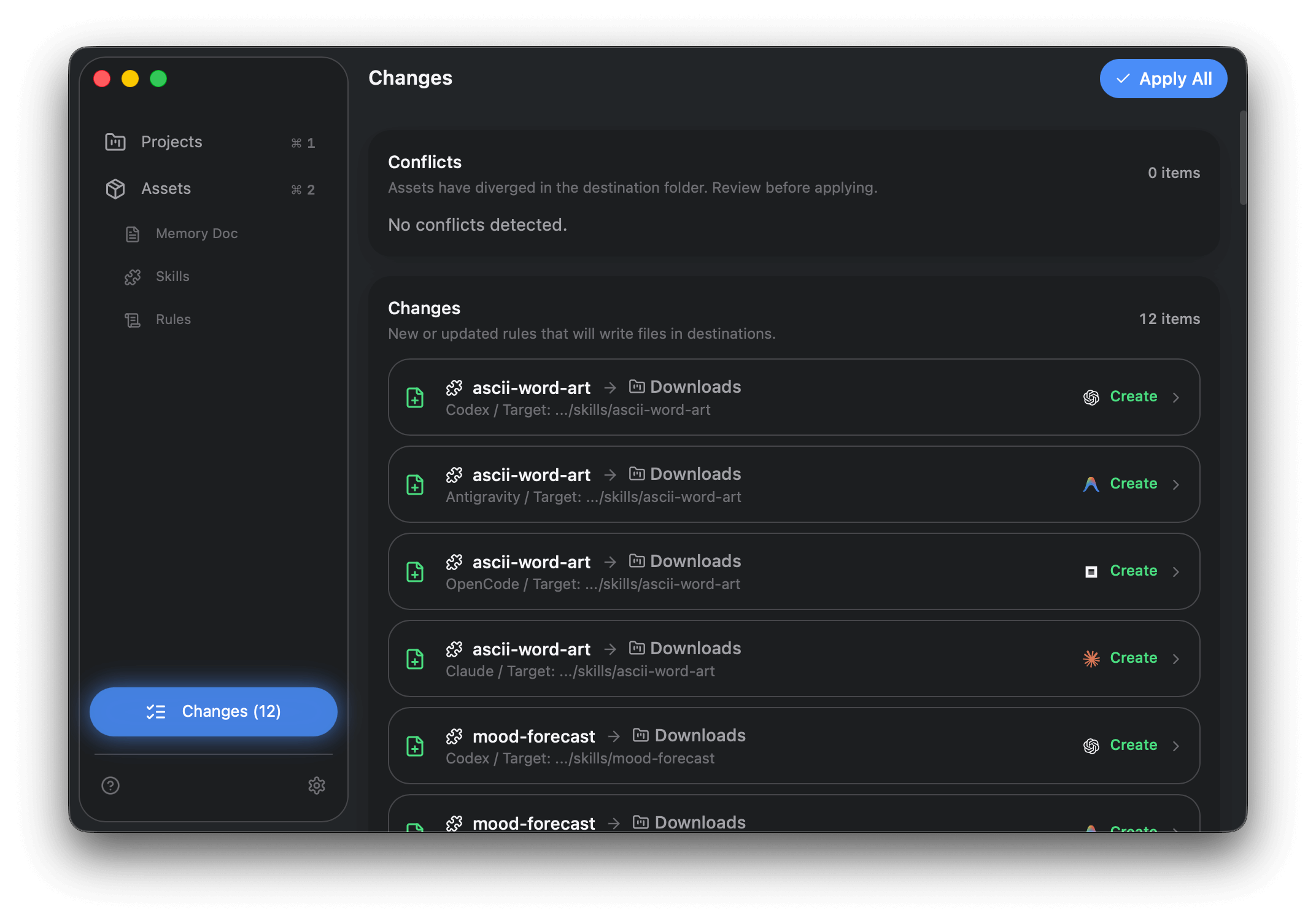
- Open Changes in the sidebar.
- Review the plan and click Apply All.
Why this matters
Section titled “Why this matters”Once a skill is managed in your library, you can deploy it across projects and agents without reinstalling or copying it each time. This saves time, especially when you reuse the same skill in multiple projects.
Next step
Section titled “Next step”Set up project-level and per-asset agents: Configure a Project.