
Edit & Publish Changes
Once an asset is linked to projects, you can edit it in one place and publish updates everywhere.
-
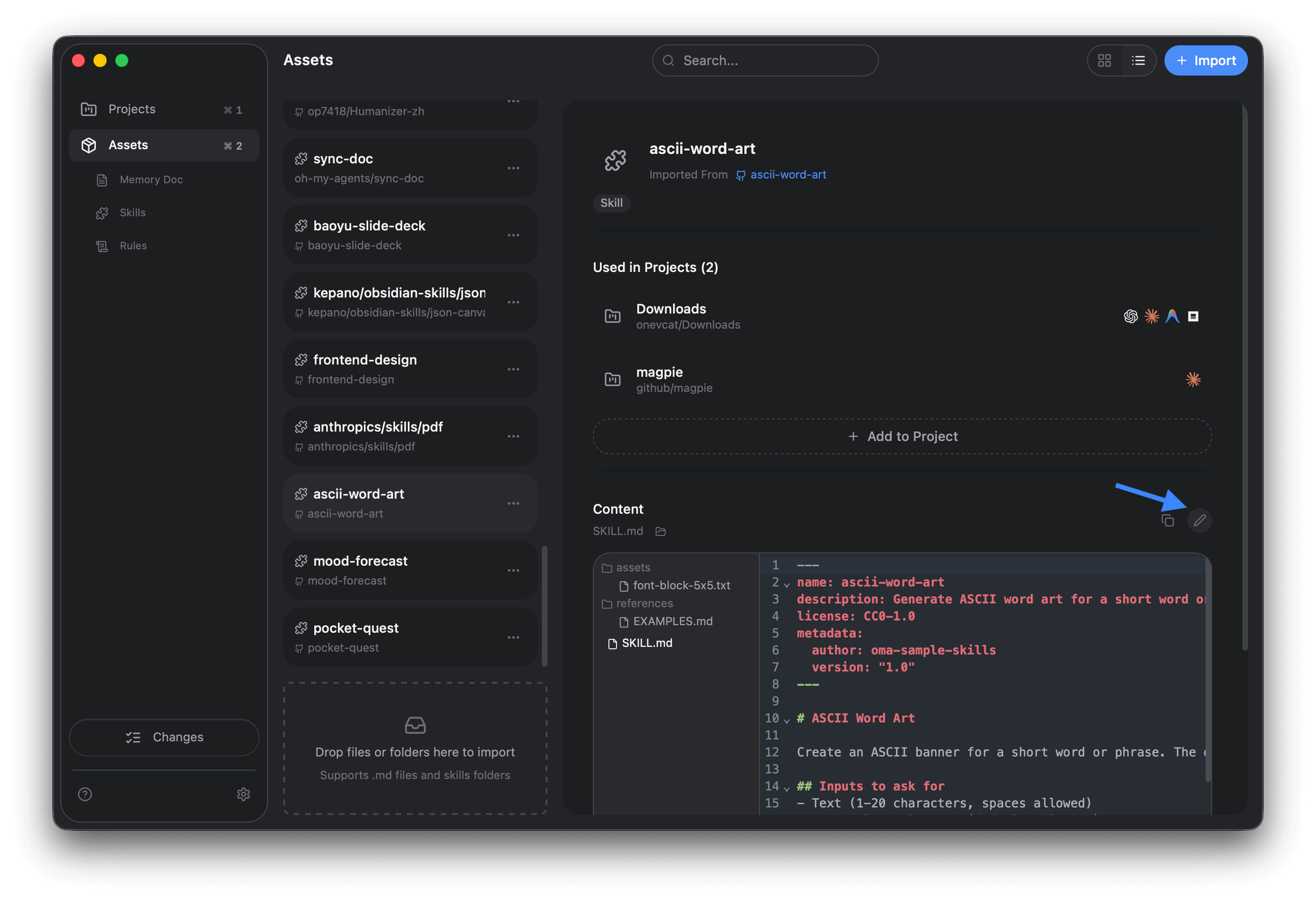
Open the asset
- Go to Assets and select the skill/memory doc/rules item.
-
Edit the content
- In the Content panel, click Edit.
- Make your changes and click Save.
-
Review in Changes
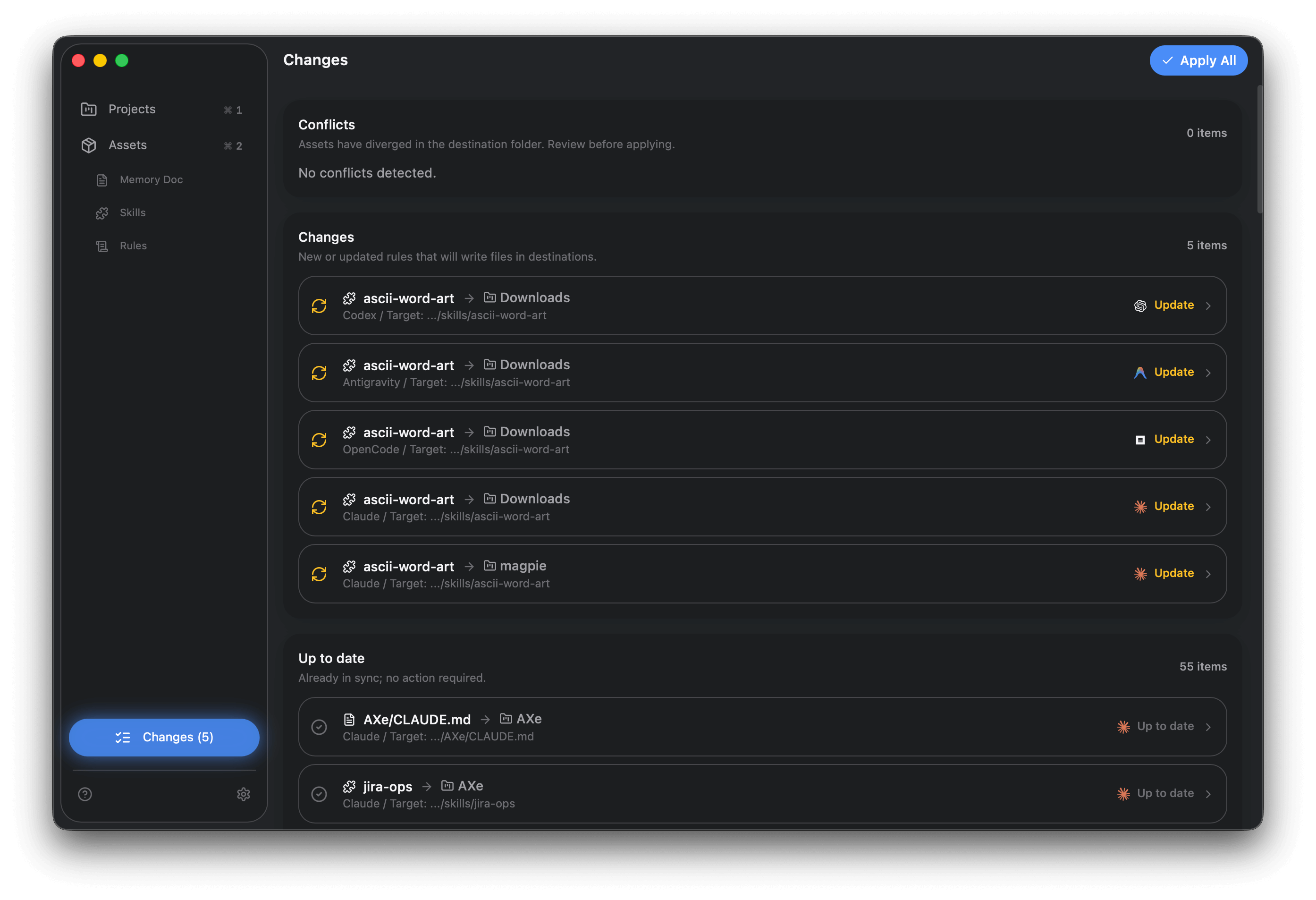
- Open Changes from the sidebar.
- Your update appears under Changes.
-
Publish
- Click Apply All to push updates to all linked project files.
- You can open any item in Changes to review details before applying. The left side shows OMA Library content, and the right side shows Project File content.
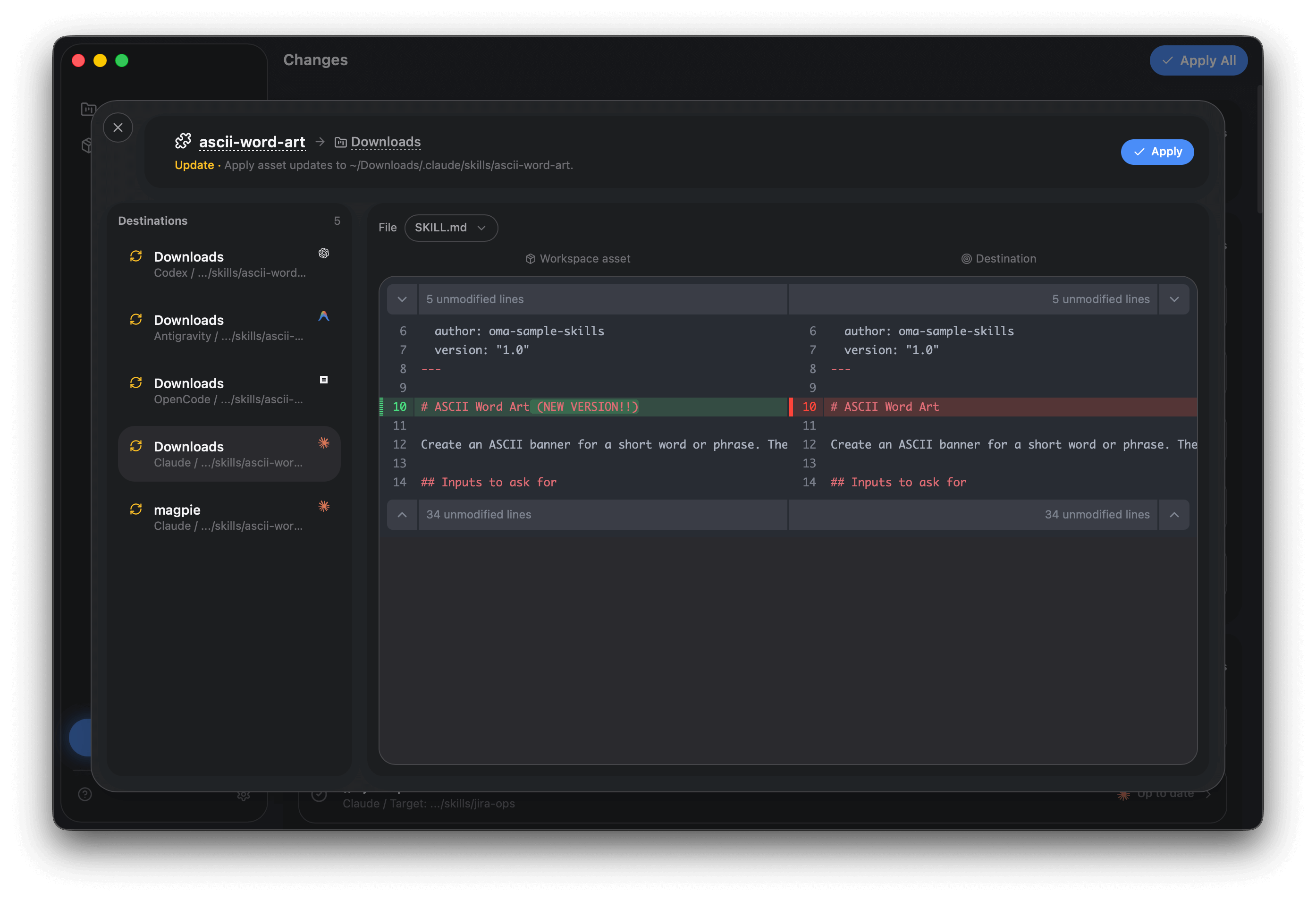
- For update items, Apply publishes the OMA Library version. If you want to keep the project file and revert unsynced library edits, use Discard and confirm.
- Use this flow for all asset types: Skills, Memory Docs (like
AGENTS.mdorCLAUDE.md), and Rules.
Next step
Section titled “Next step”When files change outside the app, use pullback: Pullback & Resolve.