
Changes
The Changes view shows the sync plan before anything is written, then applies it to publish files into the project folder and each agent-specific project file location.
Changes
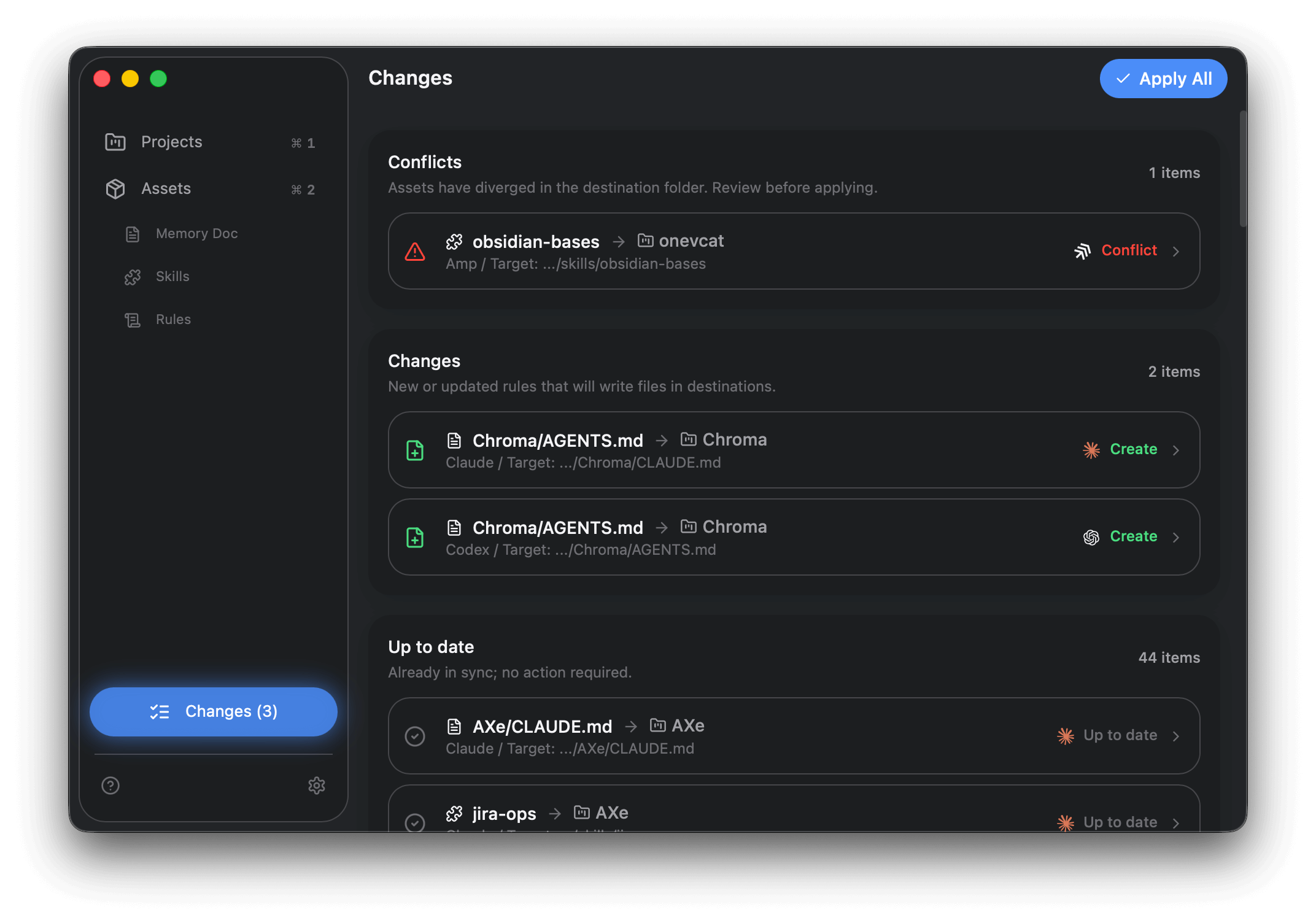
Section titled “Changes”The Changes view groups the plan into three sections:
- Conflicts: the project file changed outside the app. This usually means files were edited directly in the project folder after OMA created them. When conflicts appear, choose which version to keep. See Pullback & resolve.
- Changes: new or updated files that will be written. This includes newly imported assets that need to be published into the project, and assets edited inside OMA. In most cases, Changes is safe to apply directly.
- Up to date: already aligned, no action needed.
Open any item to review what will change and how the project files will look.
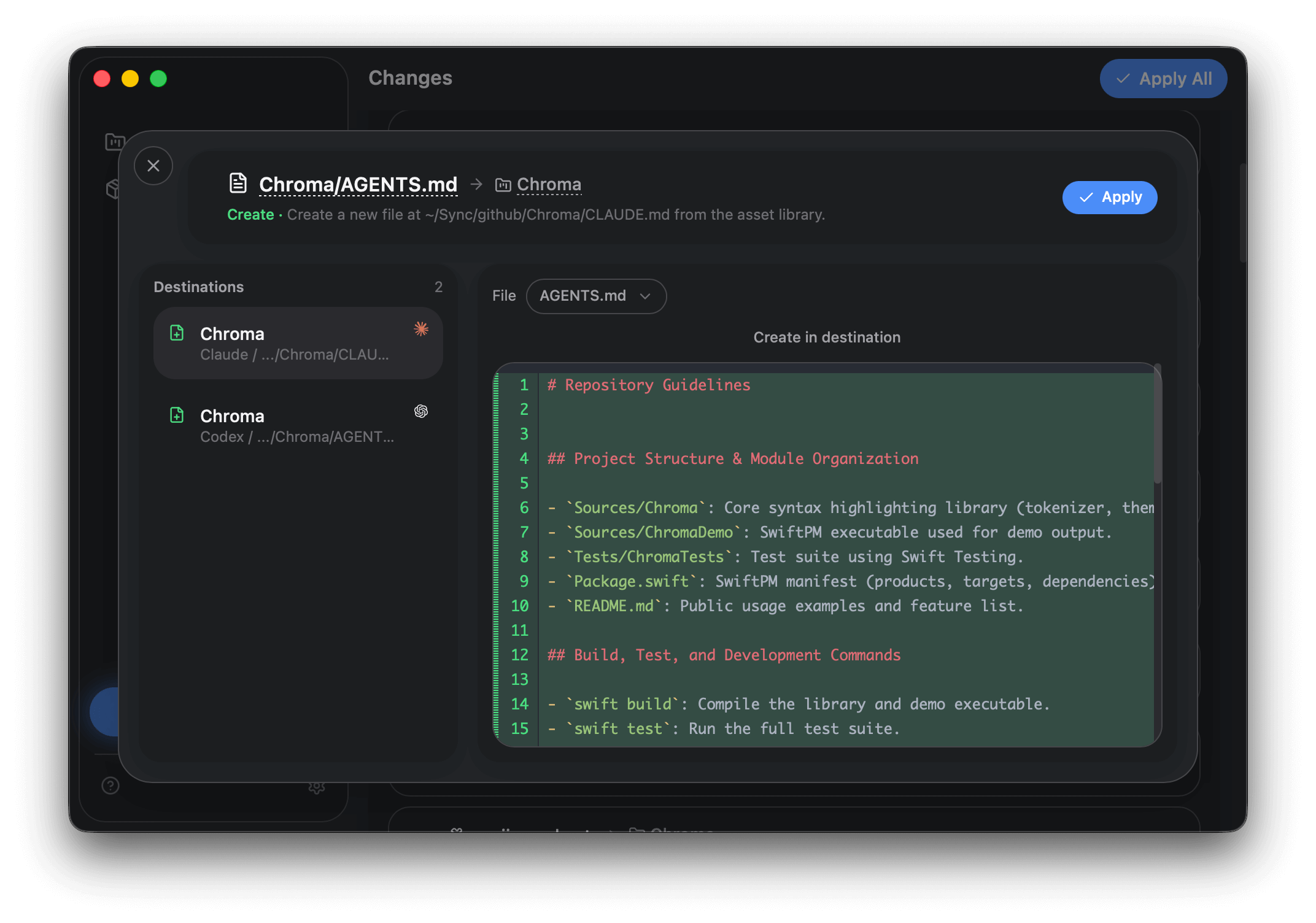
Apply All publishes everything under Changes and skips Conflicts. You can leave conflicts in place until you decide.
For Conflicts, select Pullback or Overwrite, then click Apply and confirm. For Update items, click Apply to publish the OMA Library version, or Discard to revert the OMA Library asset to match the current project file.