
Assets
Assets is your main library for everything you’ve imported. Use it to confirm what is in Oh My Agents, review details, and manage updates across projects and agents.
Asset types
Section titled “Asset types”Oh My Agents supports three types:
- Skills: reusable prompts or tools.
- Memory Docs: context documents used by agents (for example
AGENTS.mdorCLAUDE.md). - Rules: constraints or policies used by certain agents.
Why assets matter
Section titled “Why assets matter”- One source of truth for multiple projects.
- Consistent behavior across your agents.
- Easy updates through the Changes view.
Import assets
Section titled “Import assets”Open Assets and click Import.
From URL
Section titled “From URL”- Paste a URL into From URL.
- Click Import URL.
- Supported URL types:
| Type | Example |
|---|---|
| GitHub repo root | https://github.com/owner/repo |
| GitHub folder | https://github.com/owner/repo/tree/main/skills |
| GitHub file | https://github.com/owner/repo/blob/main/SKILL.md |
| GitHub raw file | https://raw.githubusercontent.com/owner/repo/ref/path |
| Direct HTTP/HTTPS file | https://example.com/path/to/file.md |
| skills.sh short URL | https://skills.sh/owner/repo (optional /skill-name) |
- For supported links, you can also replace
https://withoma://in the browser to import directly.
From device
Section titled “From device”- Choose File or Folder to import local assets.
Asset type detection
Section titled “Asset type detection”Oh My Agents inspects the import and automatically determines the asset type. When the type isn’t clear, you’ll be asked to choose:
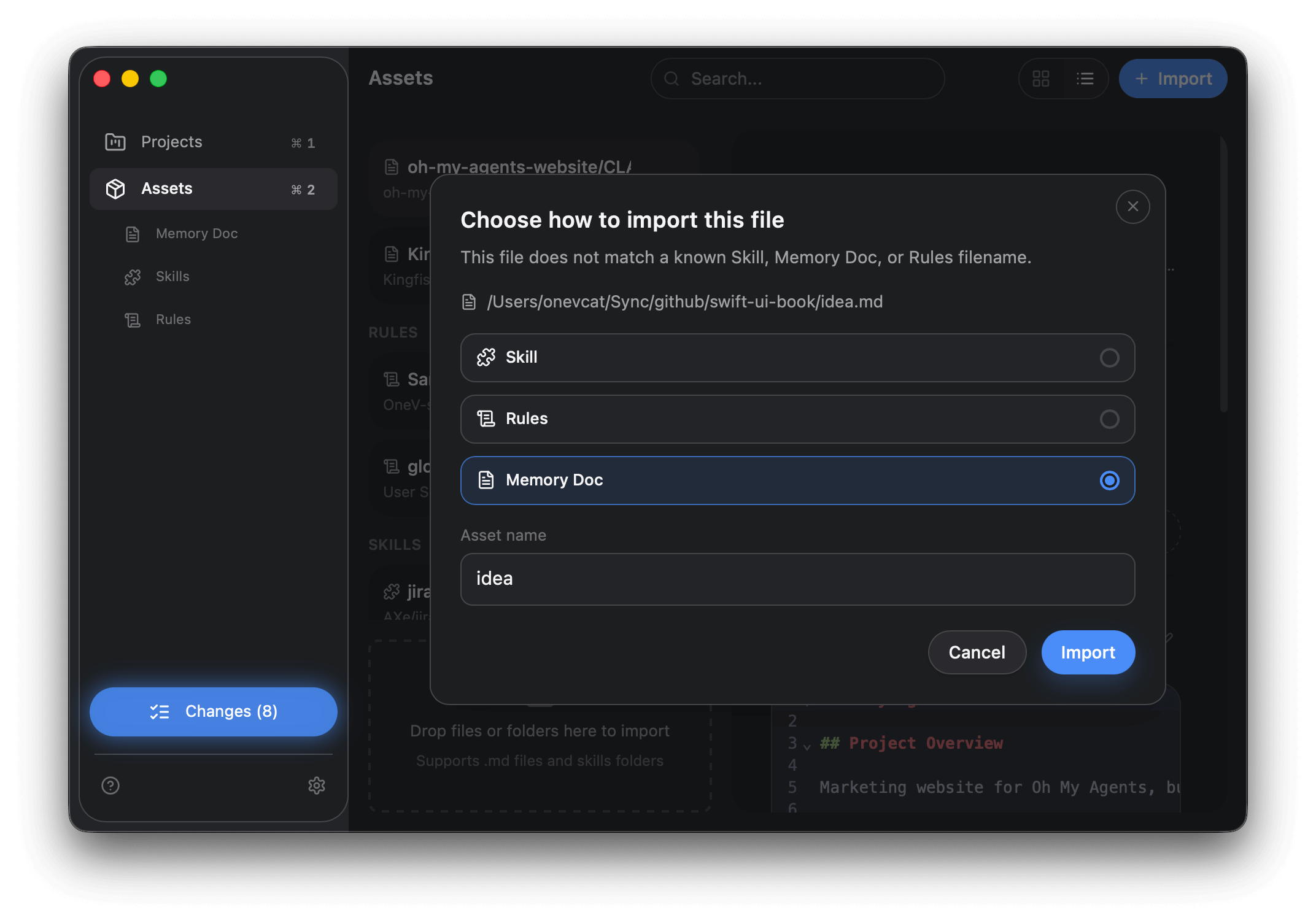
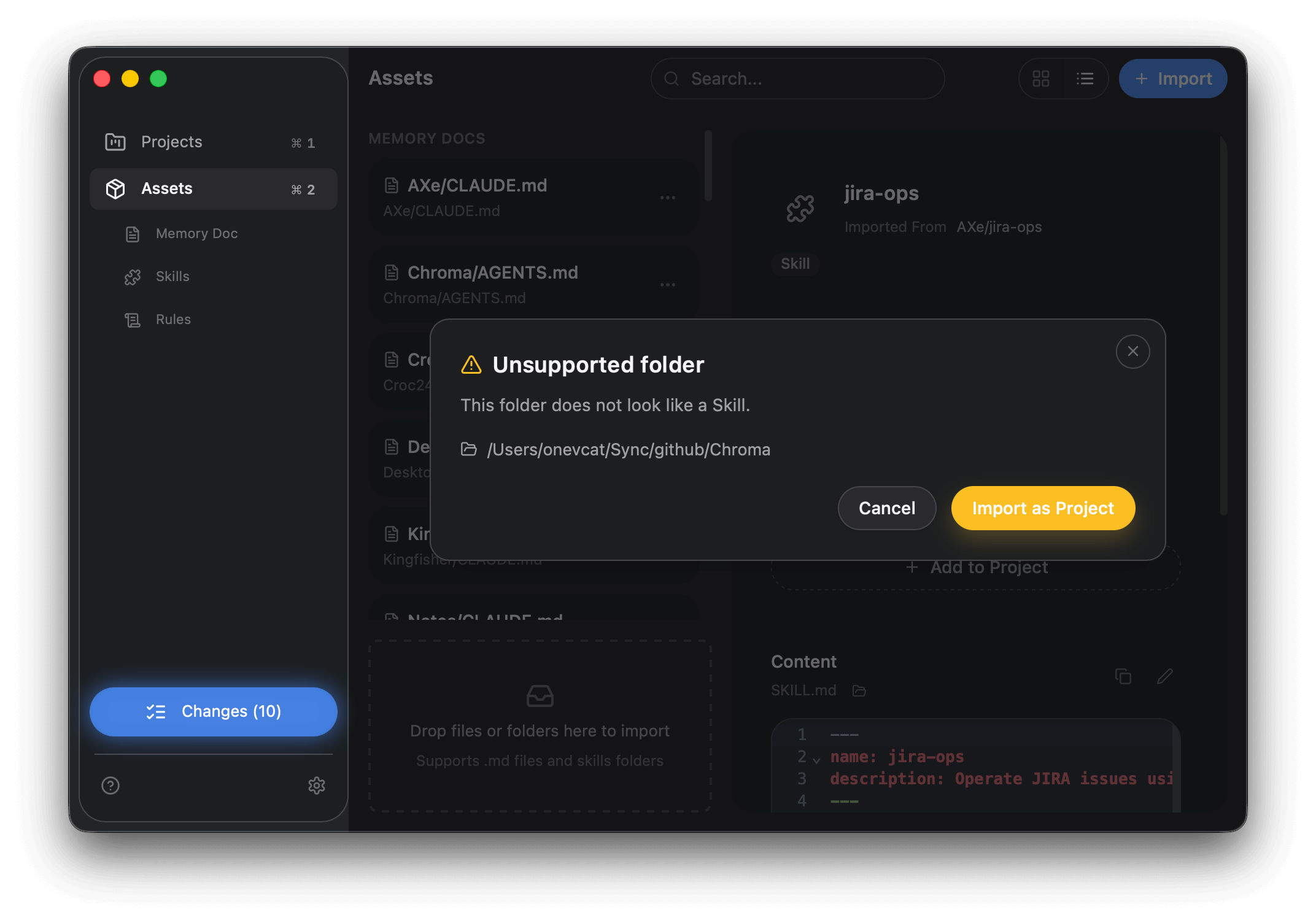
- If a folder doesn’t look like a Skill, you can import it as a Project instead.
- After importing as a Project, Oh My Agents scans it and pulls any detected assets into the library.
Link to projects and agents
Section titled “Link to projects and agents”After import, you’ll be prompted to:
- Pick a project.
- Select the agents that should receive the asset.
- Confirm with Link Assets (or Apply Changes if replacements are required).
Manage assets
Section titled “Manage assets”Add to another project
Section titled “Add to another project”Open an asset detail view and click Add to Project, then choose the project and agents.
Edit content
Section titled “Edit content”Open the asset and use Edit → Save in the Content panel. Editing inside Oh My Agents is the recommended way to keep everything in sync. After saving, use Changes to publish updates to all linked projects and agents. See Edit & Publish Changes.
Open asset files
Section titled “Open asset files”When you open an asset in Asset Detail, Oh My Agents opens the copy stored in your OMA workspace.
Rename or delete
Section titled “Rename or delete”Use the asset context menu in the Assets list to rename or delete an item. Renaming is safe and helps organization, because the display name is not the asset’s ID in the library.